
Feature Overview
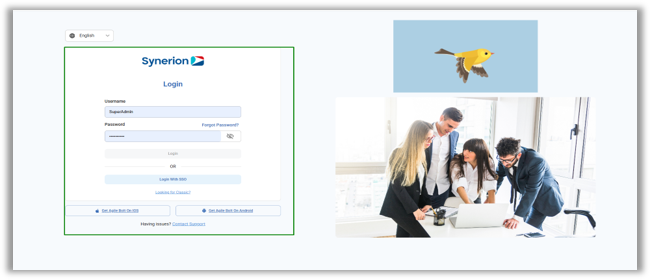
The new Bolt Login page provides a unified login experience for both MSS and ESS users while maintaining Classic functionality.
Unlike Classic, Bolt uses a single login URL for both MSS and ESS users. After authentication, users are automatically redirected to the appropriate portal based on their access.
FAQs
Should I use the same credentials as I used before on the new Bolt login page?
Yes, your username and password have not changed, so the same credentials should be used on either the Bolt or the Classic login page.
I have a bookmark of the Classic login page. Is this still going to work? Do I need to change it?
The new Bolt login page replaces the Classic login page. So an existing bookmark pointing to {company_name}.synerionagile.com will now direct you to the Bolt login screen. If you’d like to continue using the Classic login screen, you can click the ‘Looking for Classic?’ link, and bookmark that page. The new URL for the Classic login page will be {company_name}.tz.synerionagile.com
Bookmarks shoud point only to the {company_name}.synerionagile.com or {company_name}.tz.synerionagile.com URLs. Any bookmarks to specific pages that end in .aspx will no longer work.
Why am I being redirected to the Bolt dashboard when logging in via the Classic login page?
This behavior is controlled by user preferences even though you are logging into Classic, in the system, your preference is set to Bolt, that’s why you are redirecting to Bolt. To change the preferences,
MSS Users:
- Select the profile icon (top right of the screen)
- Select Preferences
- Go to Login Settings
- Choose “Agile Classic”
ESS Users:
- Go to Settings in the side dashboard menu
- Scroll to Display Preferences
- Select “Switch to Agile Classic”
Can I set my preference to stay on Classic?
Yes.
MSS Users:
- Select the profile icon (top right of the screen)
- Select Preferences
- Go to Login Settings
- Choose “Agile Classic”
ESS Users:
- Go to Settings in the side dashboard menu
- Scroll to Display Preferences
- Select “Switch to Agile Classic”
Can I go back to Classic while using the Bolt?
Yes. MSS users can navigate to Classic by selecting the “Back to Classic” option available in the main sidebar menu.
How Login works
- If a user has bookmarked the existing login URL, accessing it will automatically redirect them to the Bolt Login page.
- Users who want to access Classic can click the “Looking for Classic?” link on the login page to open the Classic Login page.
- On the Bolt Login page, the user enters their username and password and clicks Login to authenticate.
- Based on the user credentials, the system identifies whether the user is ESS or MSS and redirects them to the appropriate application.
Forgot Password & Reset Password Flow
Like Classic, Bolt also supports a secure Forgot Password and Reset Password flow for non-SSO users, ported from Classic with improved validations and UI.
Flow:
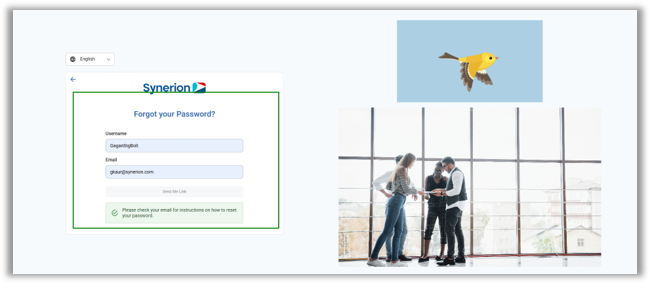
- On the Bolt Login page, user clicks “Forgot Password” link
- Enter username and email address and click “Send Me Link”
- If entered credentials are correct, Reset link is sent to the registered email and Success message is displayed.
- User opens reset link from email
- User enters New password and Repeat New Password
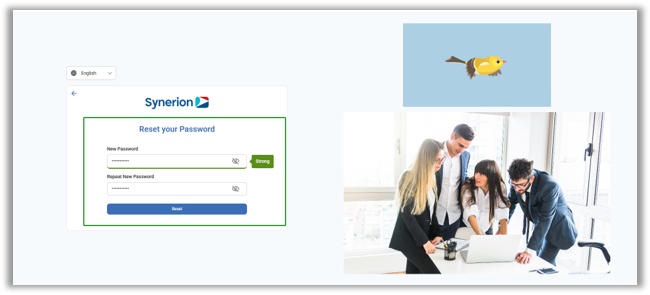
- User clicks “Reset”
- Success message is displayed with a timer.
- User is redirected to login page after timer expires.
Technical Notes
- Forgot Password appears on Login page only if system setting ForgotPasswordEnabled is enabled.
- Forgot Password is not applicable for SSO users. Also, Change Password in the app is hidden for both ESS and MSS when accessing the app as a SSO user.
- Reset link is valid for one-time use only.
- Like Classic, enforces strong password policies.
- For users with both MSS and ESS access, a system setting “Bolt.Login.DualAccess.DefaultMode” determines the default landing portal (default = MSS). Currently, switching between MSS and ESS depends on this value. In-app switching between MSS and ESS is planned for a future release.
Login with SSO
Now, Users can sign in to Bolt using SSO (if it has been configured). If SSO is already set up in Classic, users can continue using the same SSO experience in Bolt. The Bolt login flow supports Single Sign-On (SSO) for ESS and MSS using the OpenID Connect (OIDC) protocol with a secure Backend-for-Frontend (BFF) pattern. SSO requires additional configuration, which is not covered in this document.
For Only SSO Mode (New in Bolt)
A new system setting Bolt.ShowLoginInput.Enabled has been introduced in Bolt to control whether username and password fields are displayed on the login screen. When set to No, the login fields are hidden and users will see only the “Login with SSO” option.
SSO vs Force Password Change Handling
In Bolt, similar to Classic behavior, users authenticated via SSO will not be prompted for a password change, since username/password credentials are not applicable in this flow.
When a user account has Force Password Change enabled, the system behavior depends on the authentication method:
- If the user logs in using username/password:
- Enforce the password change flow as per Must Change Password rules.
- If the user logs in via SSO:
- Skip the password change flow, even if Must Change Password is enabled.
Mobile App installation QR codes (New in Bolt)
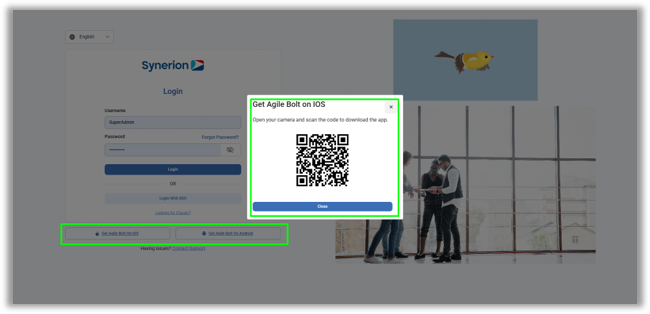
On Bolt Login page, we have introduced the QR codes to install the Agile Mobile apps – iOS and Android. Clicking the link will prompt the QR code. User can scan it with their Mobile camera to install the apps.
Support of Custom Logo and Stock Images on Login Page
A new system setting, Bolt.LoginPage.HideStockImagesWhenCustomLogo, controls the display of login page branding.
When a custom logo is configured, users can choose to display only the custom logo or show both the custom logo and stock images. If no custom logo is configured, the stock image is displayed regardless of the setting value.
NOTE: As we are supporting single login page for both MSS and ESS, ESS Custom logo section under Portal- Global options has been removed.