
Feature Overview
Classic’s home page included an Errors & Exceptions chart with counts by employee/date and quick access to Timecard Editor page to resolve issues. Whereas Bolt’s “Requires Attention” shows all items but lacks this level of detail and filtering.
Proposed Solution
In Bolt, introduced a new “Errors & Exceptions” tab on the Dashboard, enabling supervisors to view, filter, and fix payroll-blocking issues directly – individually or in bulk – with navigation to the Timecard Editor.
Benefits of Errors & Exceptions Tab
- Dedicated Errors & Exceptions tab for centralized visibility (vs legacy chart)
- Ability to fix issues directly from dashboard – individual + bulk actions (no navigation required)
- Direct navigation to TCE with proper context (improved workflow vs legacy navigation)
- Supports suggested fixes (same as TCE + new schedule-based fixes)
- More configurable behavior via system settings (e.g., exclude signed-off exceptions, exclude today)
- More granular filtering by specific error/exception types (legacy was more grouped)
- Faster payroll readiness with reduced manual effort
- Better usability improvements (sorting, paging, improved filters, clearer layout)
Where to Find Errors & Exceptions
Errors & Exceptions tab is available on Homepage dashboard.
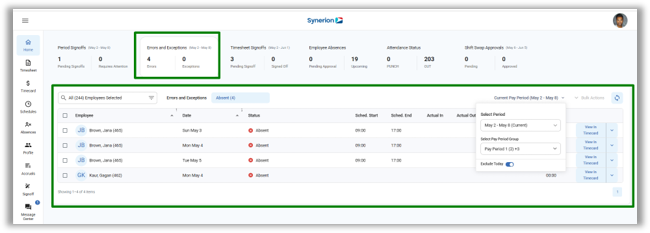
How Errors and Exception work to fix errors
- On the Dashboard, Click Errors & Exceptions tab.
- Select employee(s) from the employee selector.
- Below are selected by-default:
- Errors and exceptions category with highest count. User can select other error and exception by clicking the drop down.
- Current pay period
- Period group with most employees
- Exclude Today enabled
- To fix an individual record, click “View in Timecard” dropdown
- View suggested fixes
- After applying a fix, the record will still appear with an updated status.
- click Refresh (top-right above the grid) to update the grid or continue working through the remaining records in the list.
- For bulk fixes, select records and use Bulk Actions to apply common suggested fixes.
- If no errors remain, records are automatically signed off.
- Error and exception counts update in the tile once issues are fixed.
Suggested Fixes
Error-to-Supported Suggested Fix Mapping
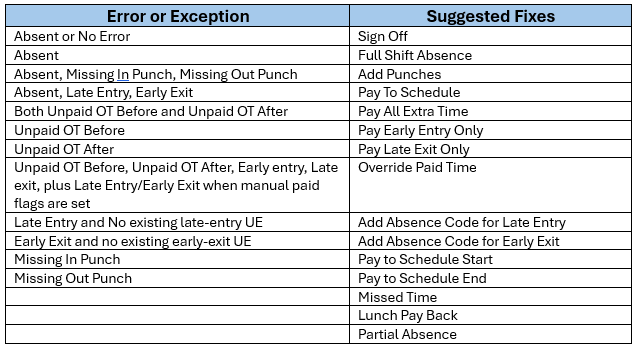
Suggested fixes- Not supported as Bulk
Add Punches, Partial Absence, Missed Time, Lunch Pay back, Override Paid Time
New Suggested Fixes
Prior to 2.0 release, Missing In/Out errors only suggest Add Punches. To improve usability, two new suggested fixes are introduced in both Dashboard and Timecard Editor (TCE):
- When Missing In, new suggested fix is Pay to Schedule Start along with existing fix – Add Punches)
- When Missing Out, new suggested fix is Pay to Schedule End along with existing fix – Add Punches)
Note: These two new suggested fixes do not apply to rules having no schedule start and end time (i.e. Open rule).
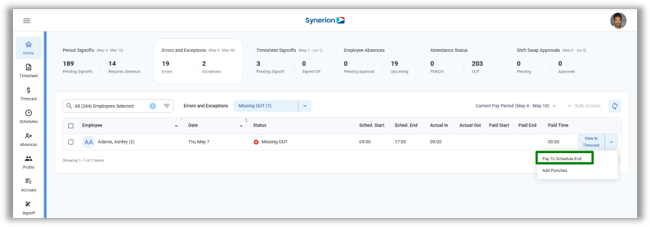
How it works?
- From Error & Exceptions drop down, select “Missing Out” or “Missing In” category
- Click on the down arrow on View in Timecard button
- From the suggested fixes list, Select Pay to Schedule Start/End applies the schedule time as the missing punch (in/out)
- Recalculates the record and signs off the shift implicitly if no errors remain.
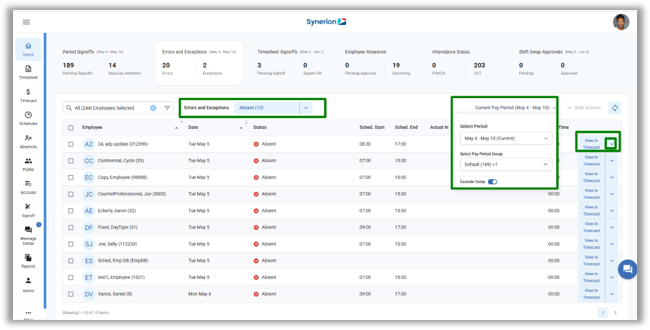
Ability to Navigate to Timecard Editor
There are two ways to open TCE from the Errors & Exceptions dashboard:
- By Error and Exception Filter: Use when you want to view all records with the same error.
- Select an error (e.g., Absent)
- Click the filter (Absent)
- Navigates to TCE with all records for that error (based on selected period)
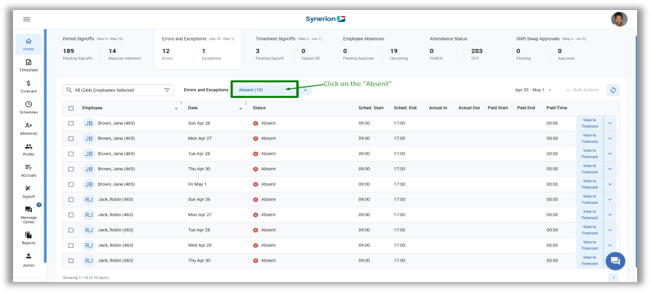
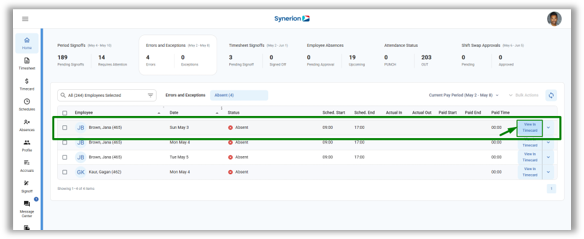
- By “View in Timecard” button: Use when you want to view records for a specific employee.
- Select an error
- Click button “View in Timecard” for a record
- Navigates to TCE with that employee’s full shift details for the period.
Bulk Actions – Suggested Fixes
Benefit: Apply common suggested fixes to multiple records at once for faster resolution.
How Bulk Actions Work
- Select more than 1 records, by selecting the checkboxes, to enable Bulk Actions.
- Click “Bulk Actions” to view common relevant suggested fixes.
- Choose a fix and click Apply
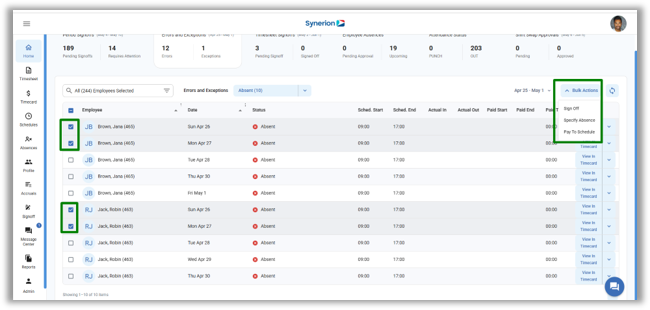
Supported fixes (Phase 1):
- Pay to Schedule, Signoff, Specify Absence
- Exception-based fixes (e.g., Late Entry, Early Exit)
- Punch-related fixes: Pay to Schedule Start/End
NOTE: If there is no common suggested fix available under bulk actions, user will see an error message “There are no bulk fixes for the selected records”
Technical Notes
- If a shift has both errors and exceptions, it is shown under errors only. Exceptions (if any) appear only after errors are resolved. Otherwise, it will sign off the record.
- For suggested fix- Specify Absence, if no schedule start/end exists, work rule schedule duration is used.
FAQs
What happens if I fix the issue here, does it also fix it in the TCE?
Yes. Fixing errors or exceptions in the Error & Exceptions dashboard also updates them in the Timecard Editor (TCE). To learn how to fix errors and exceptions click here
Are the suggested fixes in any particular order?
No, suggested fixes are available based on the error and exception.
Does it remember my previous fix?
No, there is no way to track the previous fixes.
Why does it sign off the record in some cases and not in other?
When suggested fix is applied and returned any error or exception which has suggested fixes, it will not signoff the record. Otherwise, it will sign off the record.
How can I undo a fix?
There is no way to undo the fix unless there is a manual edit on a shift match which can be removed by the destructive recalc.
When do I need to “View in Timecard”?
When there are no suggested fixes on the E&E tab, user can view in timecard editor to view the records. In addition to it, you can use “View in Timecard” to see all records for an employee within the selected pay period, not based on the selected filter.
Can I fix Timesheet employees?
No. Timesheet employees are excluded. Errors & Exceptions tab supports only timecard records with errors. A tooltip in the employee selector indicates if a timesheet employee is selected.
Do I need to fix the errors first than exceptions?
Yes. Errors take priority over exceptions. If a record has both, only the error is shown first. Once resolved, remaining exceptions or other errors will appear, if any.
Can I filter the errors & exceptions shown here?
Yes. Use the Errors & Exceptions dropdown filter to view specific error or exception types. By default, it selects the error having higher number of records.
Can I fix by one department or team at a time?
Yes. Use the employee selector filter to view records by department or team. You can also use bulk actions to fix multiple records at once.
How can I view “All” errors of the same type? (e.g. Absent in the Timecard)
Select an error type (e.g., Absent) from the drop down and click on the filter. This opens the Timecard Editor with all records for that error type (i.e., absent) within the selected pay period.