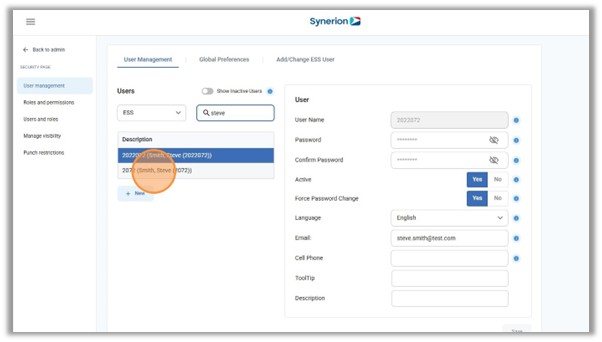
This guide will show an Admin user how to create an ESS user account for an existing employee, if the employee does not already have an ESS account.
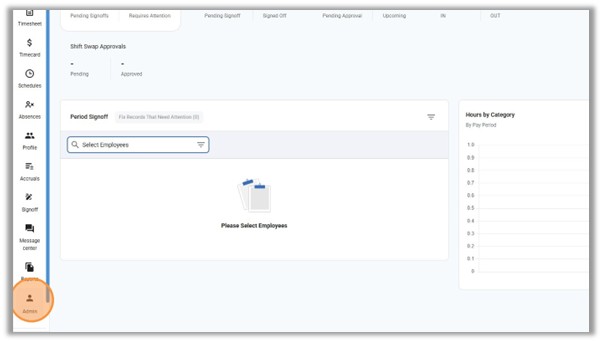
Navigate to the Admin menu.
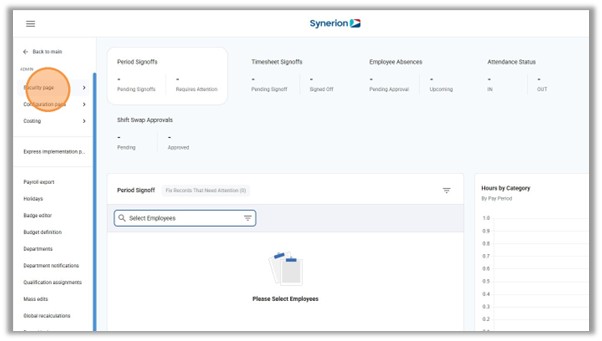
Click “Security Page”
Click “User Management”
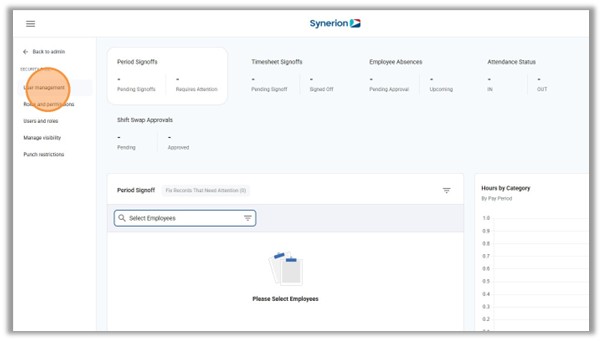
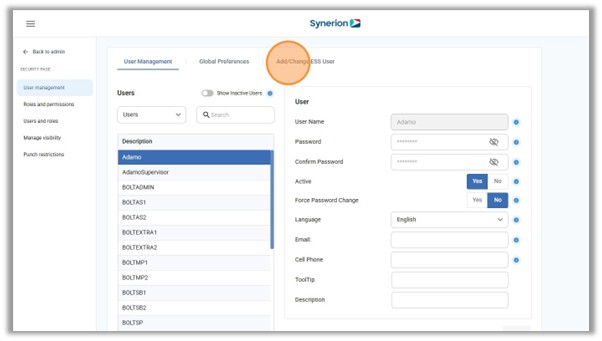
In the User Management page, select the Add/Change ESS User tab.
Find the employee for which you want to create the ESS account.
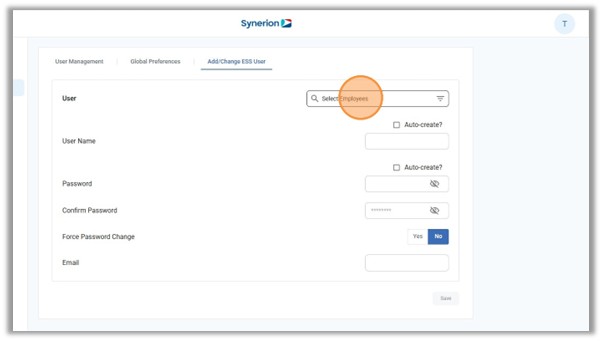
Note: You can create ESS accounts for a single employee or multiple employees in one action!
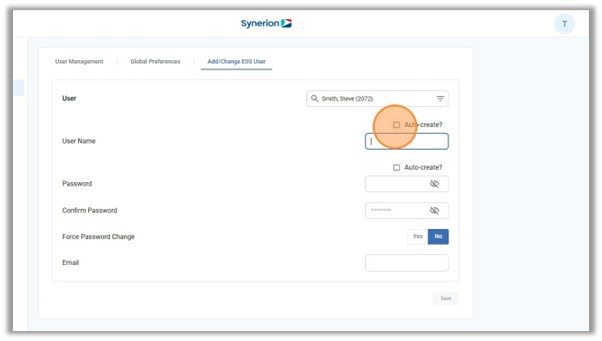
A user name can be entered manually when creating an ESS account for a single employee. However, for consistency, you can click the “Auto-create?” checkbox in order to have the system assign the user name automatically.
By default, the system will assign the Employee Code as the user name when the “Auto-create?” checkbox is selected.
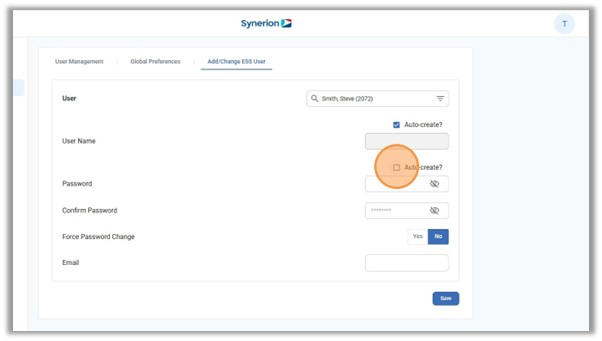
A password can be entered manually when creating an ESS account for a single employee. However, for consistency, you can click the “Auto-create?” checkbox in order to have the system assign the password automatically.
By default, the system will use the following formula when the “Auto-create?” checkbox is checked: First_name@employee_code
Enable the “Force Password Change” option in order to prompt the employee to change their password on their first login.
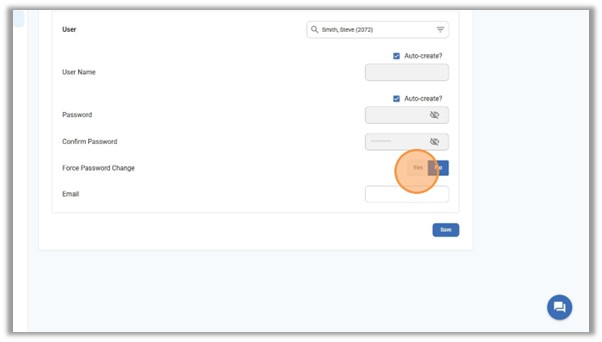
Enter the employee’s email address in order for them to receive email notifications from the system.
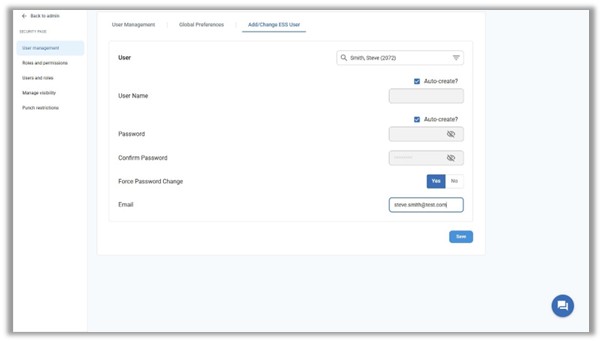
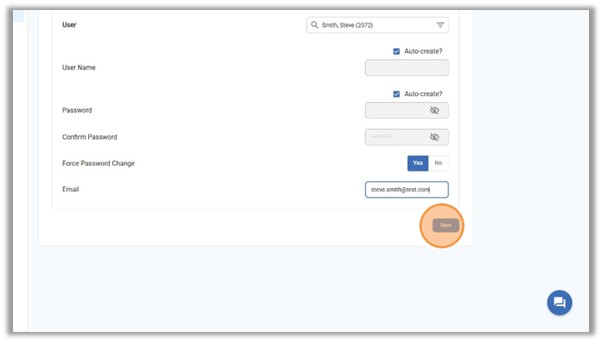
Click “Save” to create the ESS user account. A message will appear confirming that the user has been created.
You can now see the newly created ESS user account by searching for the account in the User Management tab and selecting ESS user accounts in the Users dropdown.