
Feature Overview
The Expense Attachment feature allows employees and managers to attach supporting documents (such as receipts or proof of purchase) when submitting expense entries. This helps organizations manage reimbursements for items like cell phones, meals, and work clothes directly within ESS and MSS on both web and mobile platforms. Itprovides quick visibility of attached expenses through paper clip indicators.
A new portal question is added in the ESS Timesheet section to enable or disable attachment access for selected roles.
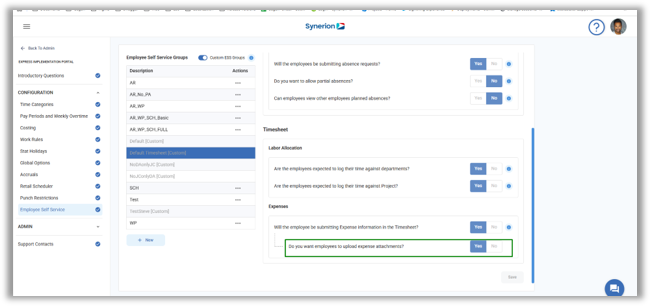
How to add an attachment to Expense
- Navigate to Timesheet or Quick Entry (for ESS)
- Click 3 dot icon appearing in the cell to Add or edit an expense entry.
- Click “Add Expense” or “Edit Expense”
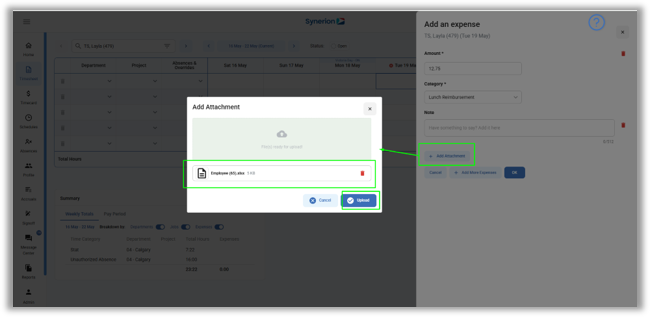
- Click “Add Attachment” in the Expense side drawer.
- select a supported file (.png, .jpg, or .pdf).
- Click “Upload”
- Enter the required fields (amount and category from the drop down)
- Click “OK” to close the side drawer. Expense entry will not be saved until user clicks Save on the grid view.
- Click “Save” to save the expense entry.
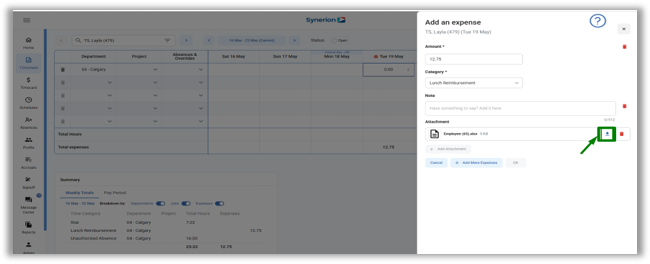
View and Download Attachments
Expenses with attachments display a paper clip icon in the Timesheet grid. To view or download the attachment:
- Navigate to Timesheet.
- Click the 3-dot menu on the cell with the paper clip icon and select Edit Expense.
- In the Expense side drawer, click the Download icon next to the attachment.
- Open the downloaded file to view the attachment.
Technical Notes
- Changed Behaviour: Multiple expenses under the same category are now shown as separate entries on the ESS Dashboard instead of being clubbed into a single record (as per previous version).
- Only one attachment per expense is allowed.
- Expenses with the same category are treated as separate records to support different receipts.
- Supported formats: .png, .jpg, .pdf
- Maximum file size is configurable through a system setting (default 1MB, maximum recommended 2MB).
- Attachment feature is available in both Web and Mobile applications for both MSS and ESS.