
Feature Overview
The primary use-case is for a mutual BambooHR customer, who does the absence management in Bamboo (not Agile) and would like to import approved absences from Bamboo to Agile for time-tracking needs.
Where to Find the Absence Sync
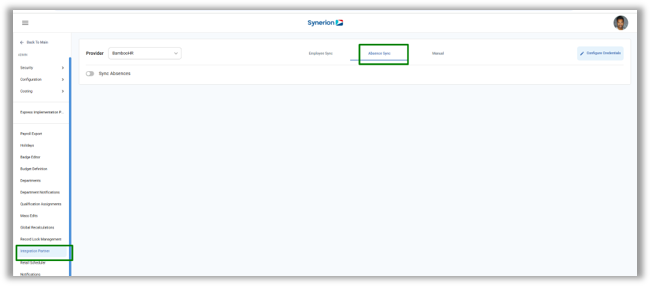
For Express Portal customers, look for Absence Sync tab under Integration Parter for BambooHR provider.
For non-portal customers, the tab is available under Integration Partner page (Admin -> Integration Partner)
Required Configuration
To import absences into Agile,
- Must be a BambooHR EmployeeSync Customer
- Must have already synced Employees from BambooHR
- System Setting: BambooHR.ScheduleAbsenceSync must be enabled.
How to import the Absences to Agile
Once the configuration is done, the first and foremost thing is to map the partner code of BambooHR’s absences to Agile time category/Absence type.
Mapping of Absence Codes
To configure BambooHR mapping, select “BambooHR” as the provider.
- Enable “Sync Absences” toggle under Absence Sync tab.
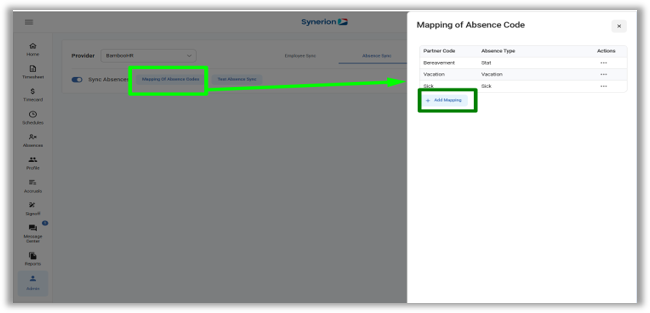
- Click “Mapping of Absence Code”
- A side panel will open, allowing user to add, edit, or delete absence code mappings:
- Partner Code displays the absence types configured in BambooHR.
- Absence Type represents the time categories in Agile.
- To create a new mapping:
- Click “Add Mapping”
- Select a Partner Code from the dropdown list.
- Select an Absence Type from the corresponding dropdown.
- Click “Save” to save the mapping.
Technical Notes
- To edit or delete any mapping of absence codes, click on 3-dot icon under Actions.
- Once a mapping is saved, the selected Partner Code and Absence Type cannot be used again in another mapping. These options will no longer appear in the dropdown lists.
- If a BambooHR time-off request uses a time-off type that is not mapped in Agile, the absence will not be imported until the user maps the corresponding absence code in Agile.
Test Absence Sync
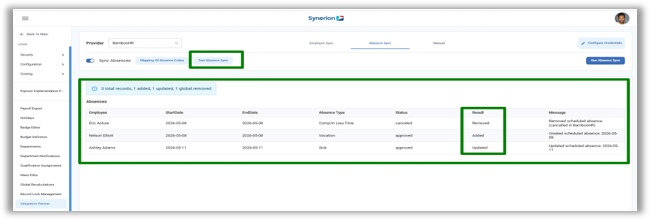
Purpose: Clicking “Test Absence Sync” displays all unsynced absences from BambooHR.
Run Absence Sync
After completing Test Absence Sync, to import BambooHR absences into Agile:
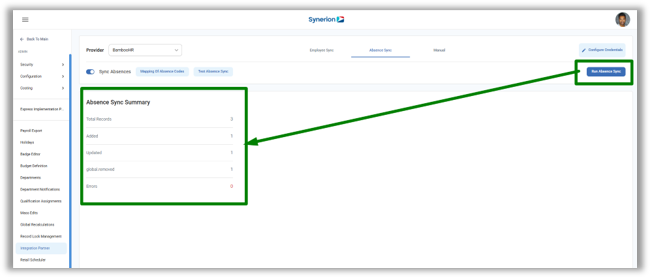
- Click “Run Absence Sync” to import absences.
- View import summary with record counts by status.
- Once sync is completed, BambooHR absences appear in Agile Calendar, Scheduler, and Time Card Editor (for past dates only).
How to fix the records in error
When running Test Absence Sync, some records may fail due to issues like unmapped time category, missing/inactive employee, lock date, or overlaps. These errors must be resolved before the absences can be imported into Agile.
Error: Time category not mapped
Reason: The BambooHR time-off type isn’t mapped in Agile.
Solution: Map the absence code in Agile. (How to map? Click here) Once mapped, rerun the Absence Sync to import the record.
Error: Employee Not Found
Reason: A new employee was added in BambooHR, but the employee sync has not been executed since, so the employee has not yet been imported into Agile.
Solution: Run the Employee Sync to import the employee into Agile before performing the Absence Sync.
Error: Employee Inactive
Reason: A time- off request coming from an employee who is inactive in Agile.
Solution: In Agile
- Go to Employee Profile page
- Uncheck the Active only filter from the Employee selector filter.
- Search for an employee
- Mark it Active
Once employee becomes active in the Agile System, rerun the Absence Sync to import the record.
Error: Locked Date
Reason: The requested time-off date overlaps with a record lock date in Agile.
Solution: Navigate to Record Lock Management under the Admin menu and update the record lock date for the employee so it does not conflict with the time-off request date.
Error: The date range overlaps existing or pending absences
Reason: An absence was created in Agile for a BambooHR employee while the same date was requested in BambooHR, causing a conflict during import.
Solution: Remove the Agile absence from the calendar for the employee, then run Absence Sync.
Note: This is a rare edge case. Absence sync is one-way from BambooHR to Agile. Avoid creating absences in Agile for BambooHR employees, as sync does not support reverse import.