
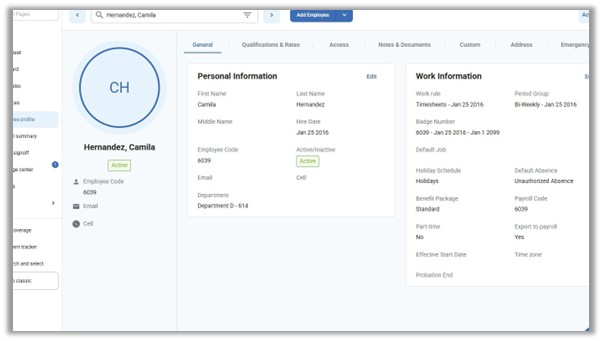
Navigate to the Employee profile tab, and select the employee for whom you would like to add a Badge.
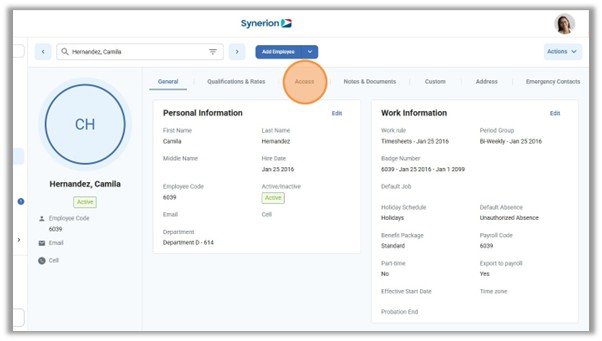
Navigate to the Access tab.
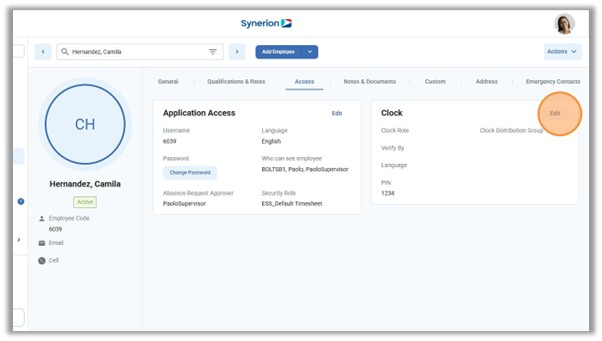
Click Edit in the Clock section.
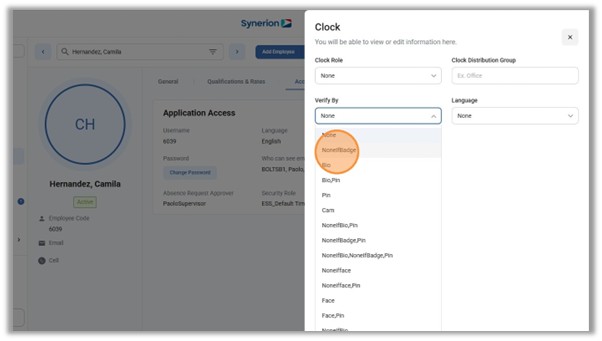
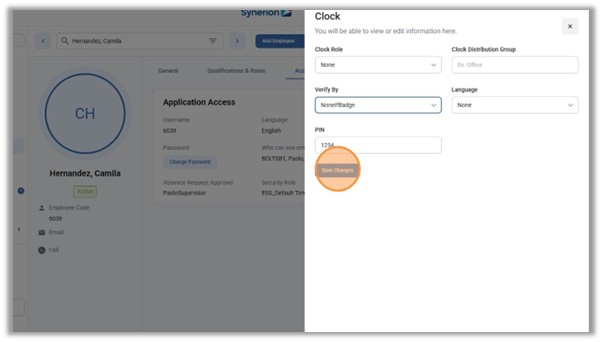
In the Verify By dropdown menu, select NoneIfBadge.
Click Save Changes.
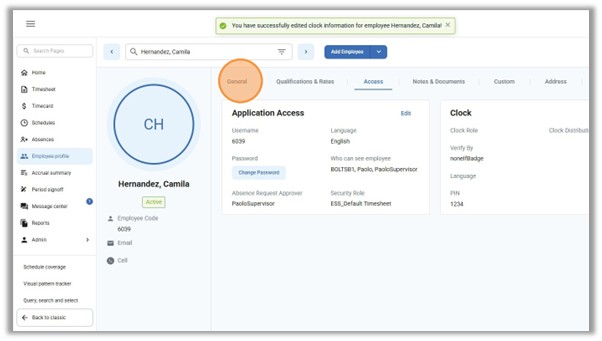
Navigate to the General tab.
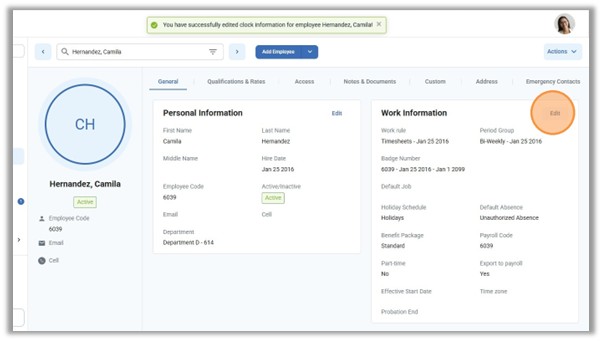
Click Edit in the Work Information section.
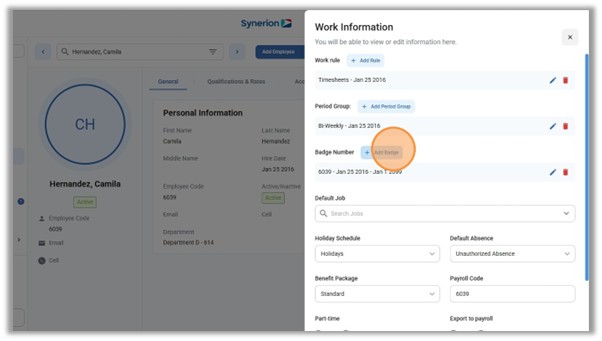
Click Add Badge.
Click on the Number dropdown to show the list of available badges.
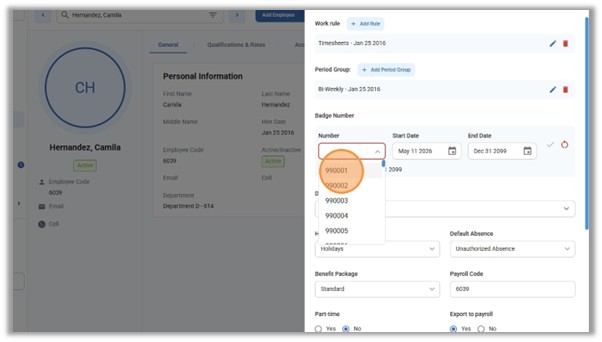
If there are no available badges in the Number dropdown, ask SAI about adding badges to the system in the Badge editor screen!
Once the correct badge has been selected from the list of available badges, choose the Start Date of the badge assignment, and click the Checkmark icon to set the new badge.
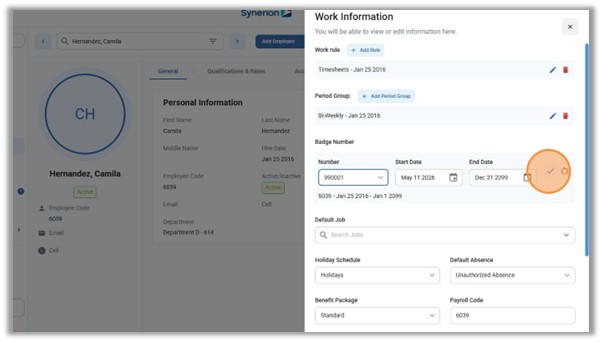
The End Date can remain as Dec. 31, 2099 if there is no End Date planned for the badge assignment.
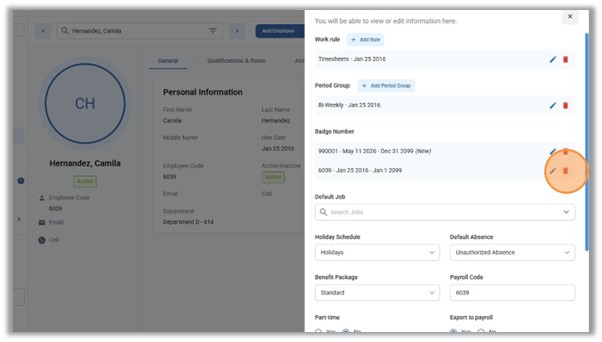
If there are any existing badge assignments, be sure to expire them with an End Date prior to the Start Date of the new badge number, or delete the existing badge assignment by clicking the trashcan icon.
Click “Save Changes”
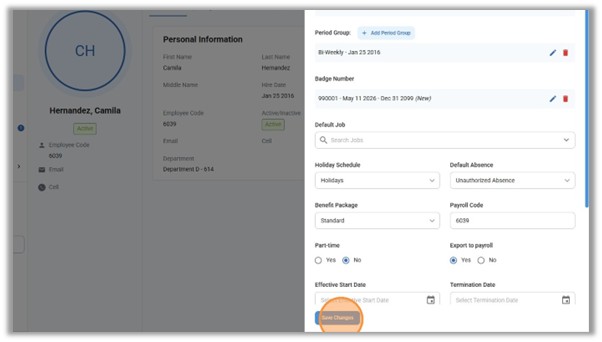
Changes are synced to the clock every 4 hours and on reboot of the clock. If the changes need to be synced immediately, please reboot the clock to force the sync.